

Programming
Scratch Programming for Children: A Practical Beginner's Guide
Learn what Scratch is, which programming ideas children can explore and how to help a beginner complete a first meaningful project.
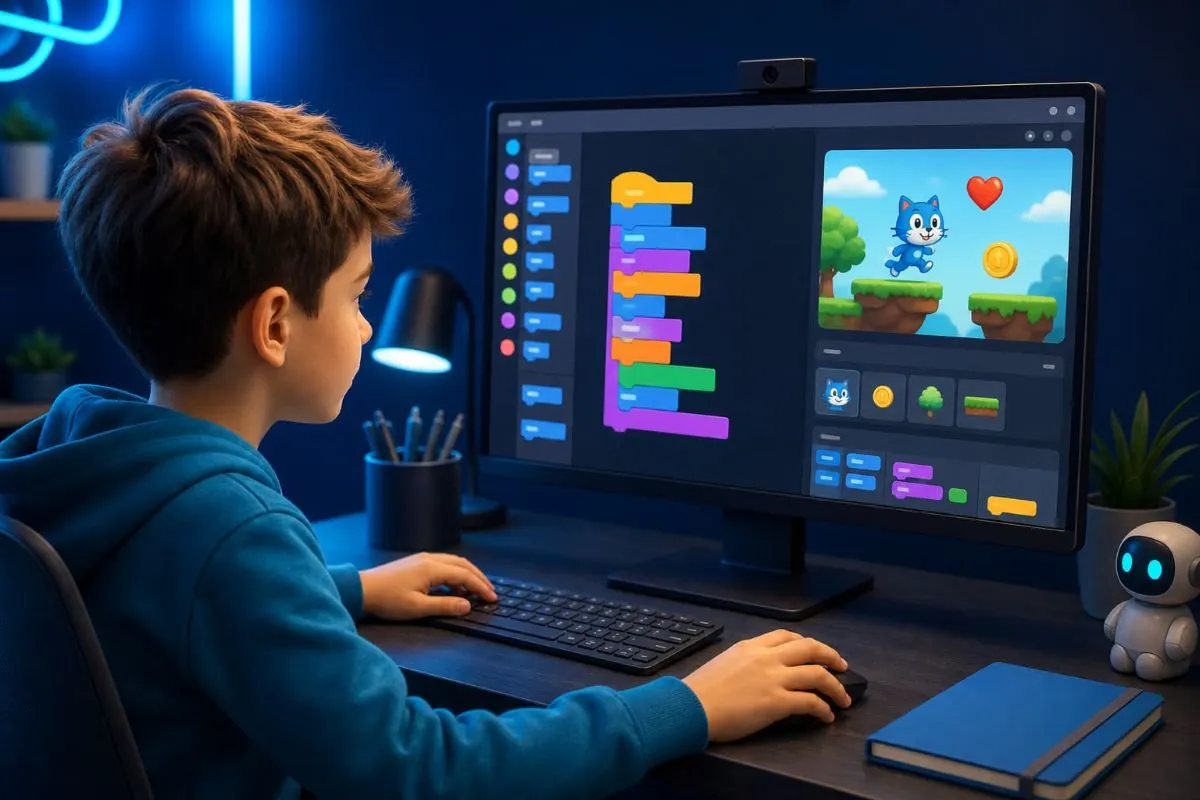
Scratch is a visual programming language and online creative community developed by the Lifelong Kindergarten group at the MIT Media Lab. Instead of typing every instruction, learners connect coloured blocks to control characters, sounds, stories, animations and games.
The block-based approach removes many early syntax difficulties without removing the need to think carefully. A project still requires instructions in the correct order, decisions, repetition, variables, testing and improvement.
Who Scratch is for
Scratch is primarily designed for ages 8 to 16, although people of many ages use it. Younger children can explore with help from a parent, teacher or older learner. ScratchJr is a separate option designed for younger children.
Age is only one consideration. A learner should be able to follow simple instructions, describe what they want a character to do and remain patient while testing ideas.
- Beginners with no previous programming experience
- Children who enjoy stories, drawing, games or animation
- Learners exploring programming concepts before text-based code
- Classes that combine computing with other subjects
Understanding the Scratch workspace
A Scratch project has a stage where the project runs, sprites that act within the project and a coding area where blocks are assembled. Sprites can have costumes, sounds and scripts.
Blocks are grouped by purpose. Motion blocks move sprites, Looks blocks change appearance, Sound blocks control audio, Events start actions, Control blocks manage repetition and decisions, and Sensing blocks help a project respond to users or other sprites.
Programming ideas children can learn
Scratch projects can introduce the same foundational ideas used in many text-based programming languages. The visual format makes relationships easier to see, but learners should still be encouraged to explain why each block is present.
- Sequence: placing instructions in the required order
- Events: starting code when something happens
- Loops: repeating instructions efficiently
- Conditions: choosing actions based on a true or false test
- Variables: storing values such as scores or time
- Coordinates: positioning and moving objects on a stage
- Messages: coordinating actions between sprites
A sensible first project
Begin with a small interactive story rather than a complex game. Choose one sprite, one background and a clear action: when the green flag is selected, the sprite moves, speaks and changes appearance.
After the basic sequence works, add one feature at a time. The learner might add a second character, repeat a movement, play a sound or use a question-and-answer block.
- Choose a sprite and backdrop.
- Use an event block to start the project.
- Add two or three actions in sequence.
- Run the project and describe what happened.
- Change one instruction and observe the difference.
- Save the project with a meaningful name.
Move from copying to understanding
Tutorials are helpful, but copying blocks without discussion can hide misunderstandings. Pause regularly and ask the learner to predict what will happen before running the project.
Invite the learner to change a number, remove a block or rearrange instructions. These small experiments show how code controls behaviour and help the learner become comfortable investigating mistakes.
- What do you expect this block to do?
- Why does this block come before the next one?
- What could we change to make the action faster?
- What happened differently from what you expected?
- How could another person understand your project?
Debugging is part of learning
When a Scratch project behaves unexpectedly, avoid immediately rebuilding it for the learner. Ask them to describe the problem, identify which script controls that behaviour and test one possible cause at a time.
Common beginner problems include scripts without a starting event, blocks attached to the wrong sprite, loops that never stop and sprites beginning in unexpected positions. Finding the cause develops more understanding than simply receiving the corrected blocks.
Online sharing and safety
Scratch includes an online community where projects can be shared, viewed and remixed. Children should use age-appropriate account supervision and avoid placing personal details in usernames, profiles, projects or comments.
Parents and educators should review the community guidelines and privacy choices with learners. Sharing is optional; projects can still be created for learning without publishing personal information.
- Do not include a full name, address, school or contact details.
- Use respectful comments and report inappropriate behaviour.
- Understand that remixing is part of the Scratch community when credit is retained.
- Ask an adult before following links or communicating outside the platform.
What to learn after Scratch
A learner does not need to rush away from Scratch. More advanced projects can use clones, custom blocks, lists, broadcasts and complex game logic.
When the learner can plan, build and debug projects independently, they may explore a text-based language such as Python or begin web development. The important transition is from visual blocks to expressing the same ideas with written syntax.
Key takeaways
- Scratch teaches real programming ideas through visual blocks.
- Small creative projects are better starting points than ambitious games.
- Prediction, experimentation and debugging matter more than copying a finished project.
- Online sharing should be accompanied by privacy and community-safety guidance.
Sources and further reading
These external resources informed this tutorial and provide additional guidance.
- About ScratchScratch Foundation and MIT Media Lab
- Information for ParentsScratch
- Ideas and Getting StartedScratch
Was this tutorial helpful?
Help us improve practical computing guidance.
Continue the conversation
Request a tutorial, suggest an improvement, report an error or contact GFEKCOMPUTING.